
Your Embodied Masculine experience. All in one place.
Stay connected to your community, your practice and your journey. My EM brings the full Embodied Masculine experience together in one place, wherever life takes you.
New to Embodied Masculine? Create a free account
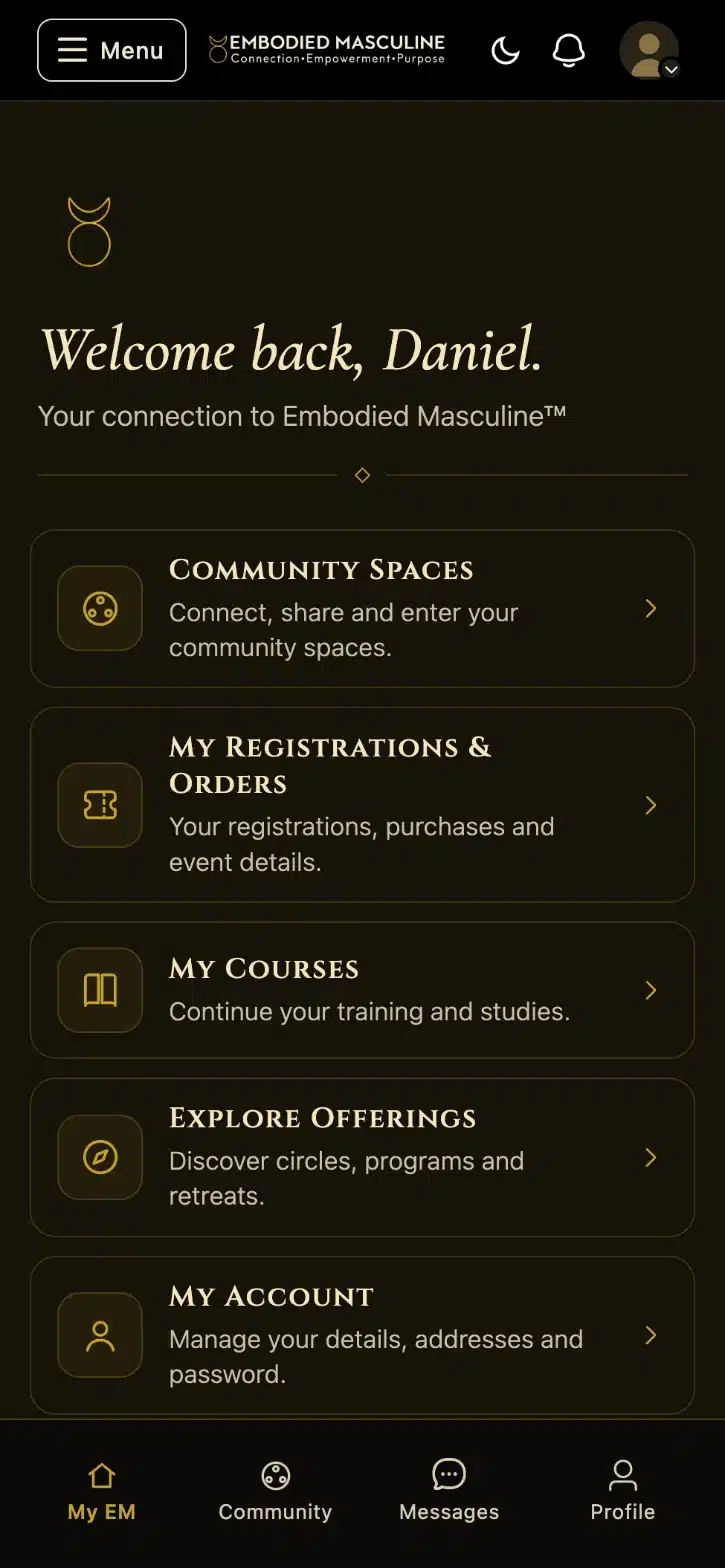

Everything within reach
From your first gathering to your ongoing practice, My EM gives you a single place to access the people, programs and resources that support your journey.
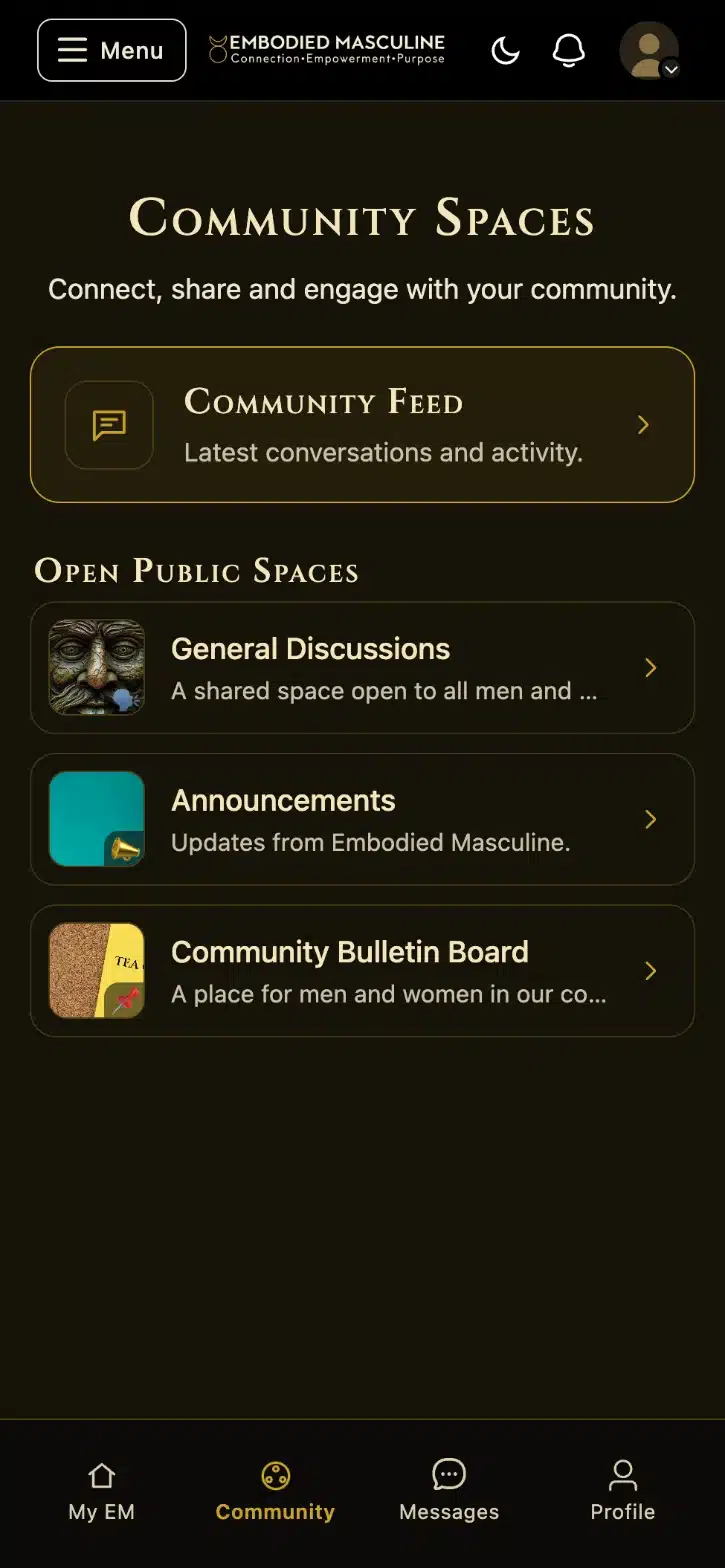
Your community
Gather with other members, participate in conversations and access your community and private program spaces.
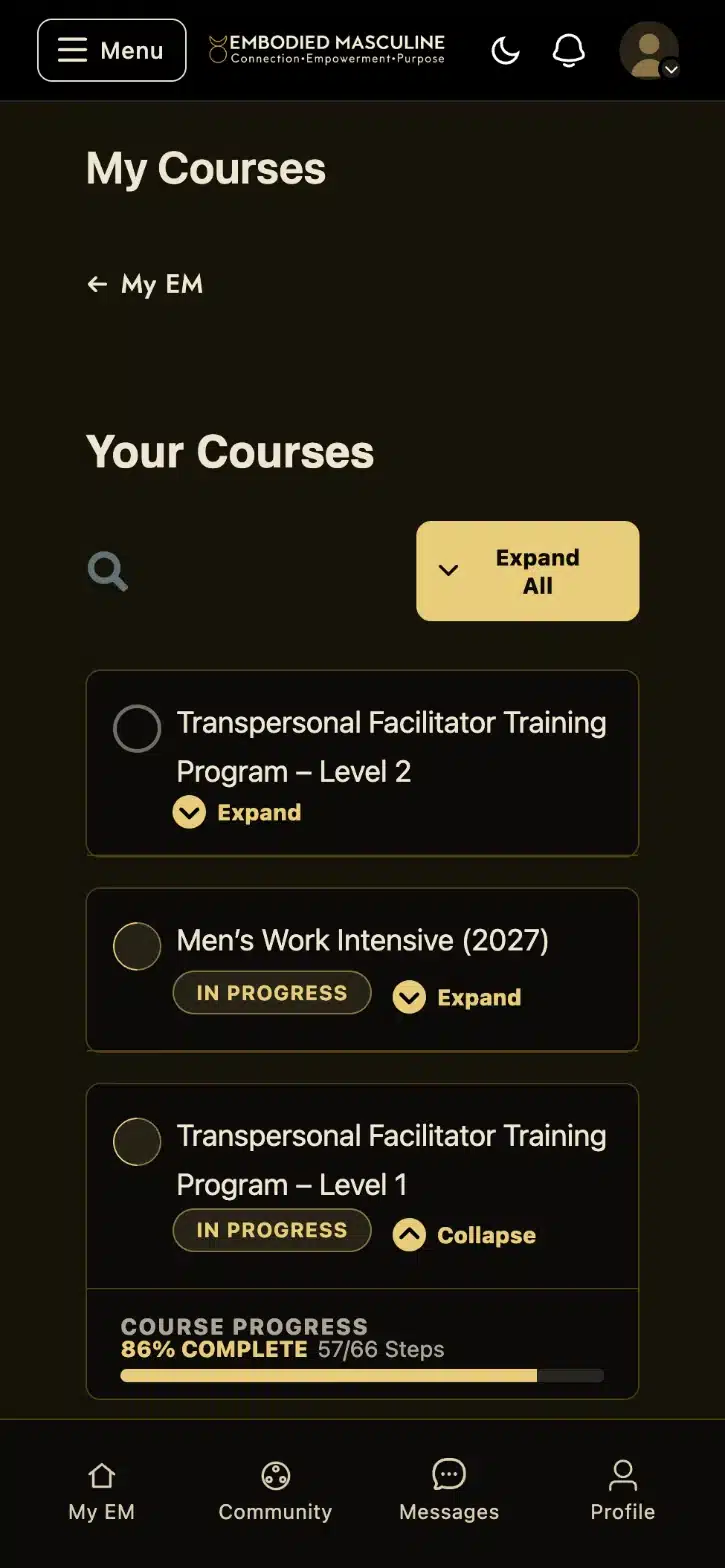
Your courses
Access your enrolled courses, training materials and practices, and continue your learning wherever you are.
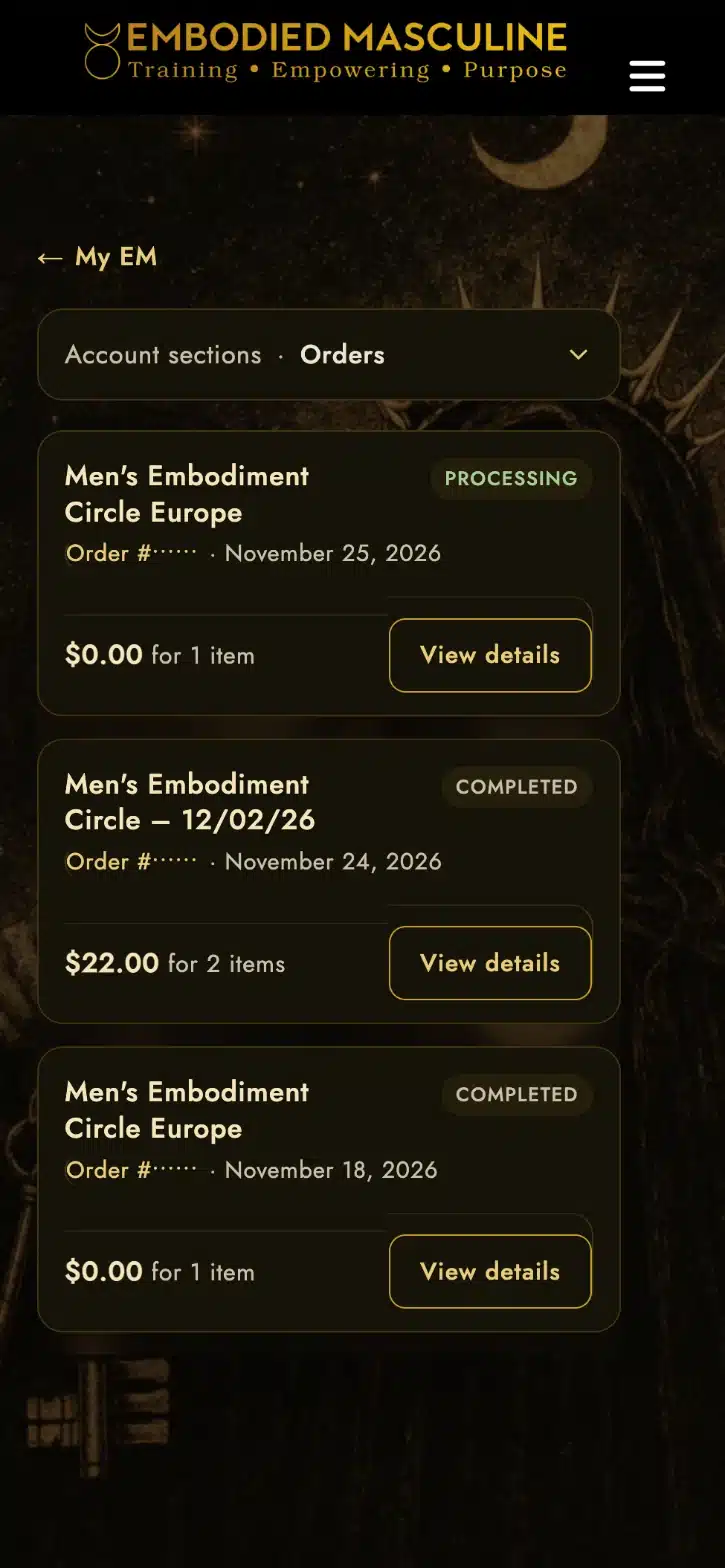
Your registrations
Explore upcoming offerings, register for circles and events, and access your existing orders and event details.
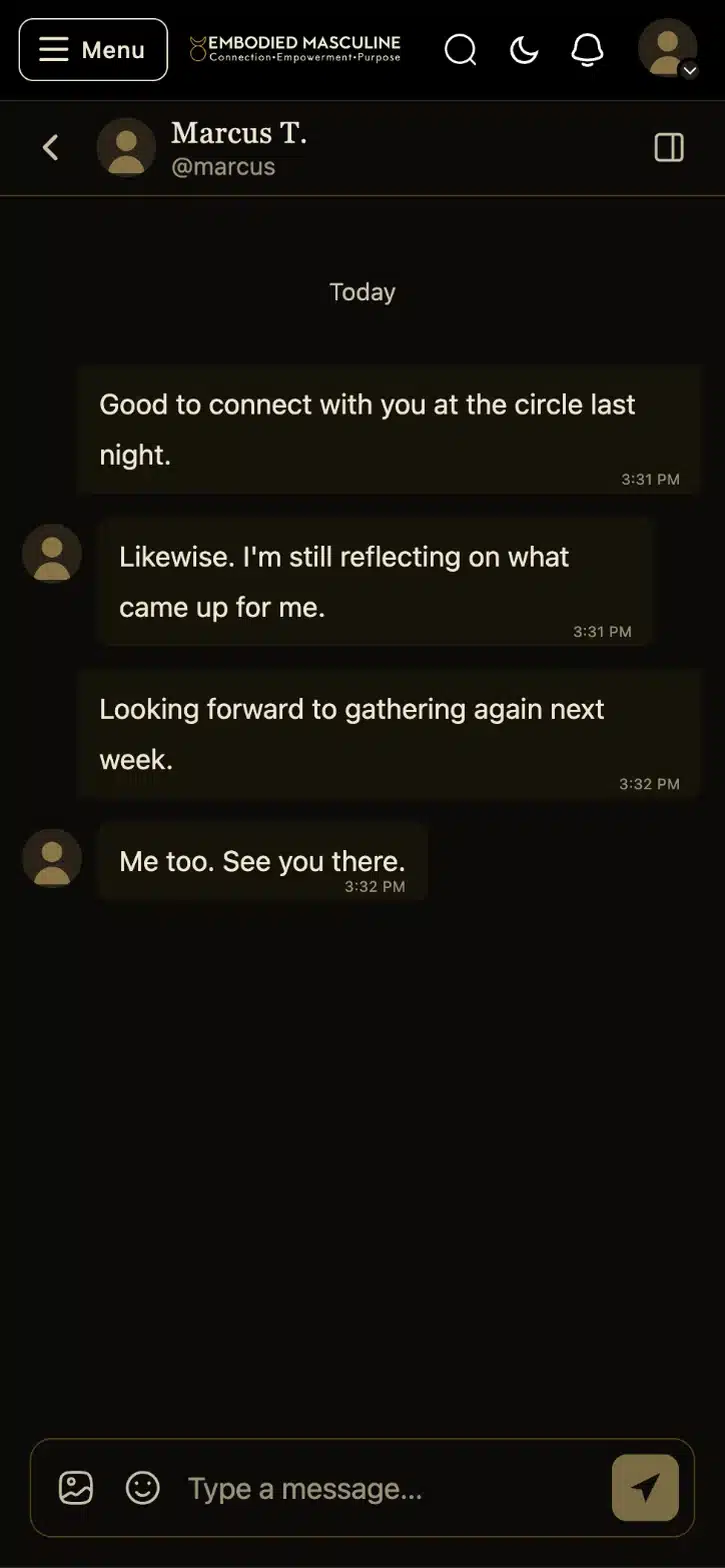
Your conversations
Connect privately with other community members and continue meaningful conversations beyond shared spaces.
Stay connected
Keep up with community conversations, announcements and important updates from Embodied Masculine.
Your account
Manage your personal details, registrations, payment methods and account preferences in one place.
Stay connected to what matters
The work doesn't end when a circle closes, a retreat concludes or a training session comes to an end. The EM App offers a way to remain connected to your practice, your community and the relationships cultivated along the way.
Install the EM App
The EM App installs directly onto your phone. No app store required. Simply sign in to My EM and follow the installation instructions for your device.
- 1Sign in to My EM
- 2Open your My EM dashboard
- 3Follow the steps for your phone
Install on iPhone
Using Safari
First, open your My EM dashboard in Safari. Install from there, not from this page.
- Tap the menu icon beside Safari’s address bar. Depending on your Safari version, it may appear as horizontal lines or three dots. If the Share button is already visible in your toolbar, tap it instead.
- Select Share from the menu, if necessary.
- Scroll down and select Add to Home Screen.
- Tap Add to install My EM.
Install on Android
Using Chrome
First, open your My EM dashboard in Chrome. Then tap Install My EM near the top of the page and confirm Install.
If you don't see the Install button
- Open Chrome's menu beside the address bar.
- Tap Install app or Add to Home screen, then confirm.
- Look for the My EM icon on your home screen.
The wording in Chrome's menu can vary slightly between versions.
Prefer not to install? My EM works in any web browser too. Simply sign in at embodiedmasculine.com and open My EM.
One account. One connected experience.
Whether you're joining a circle, participating in a training, connecting with other members or returning to your practice, My EM brings it all together.
Already an Embodied Masculine member or customer? Use your current account. No separate app account is required.